Two plans: Take-off for quantities, Framer for production
Take-off turns a 2D plan into the quantities you price with, exported to Excel, CSV and PDF. Framer adds panels, framing and every production export.
Tony Huaulme1 min read
What changes
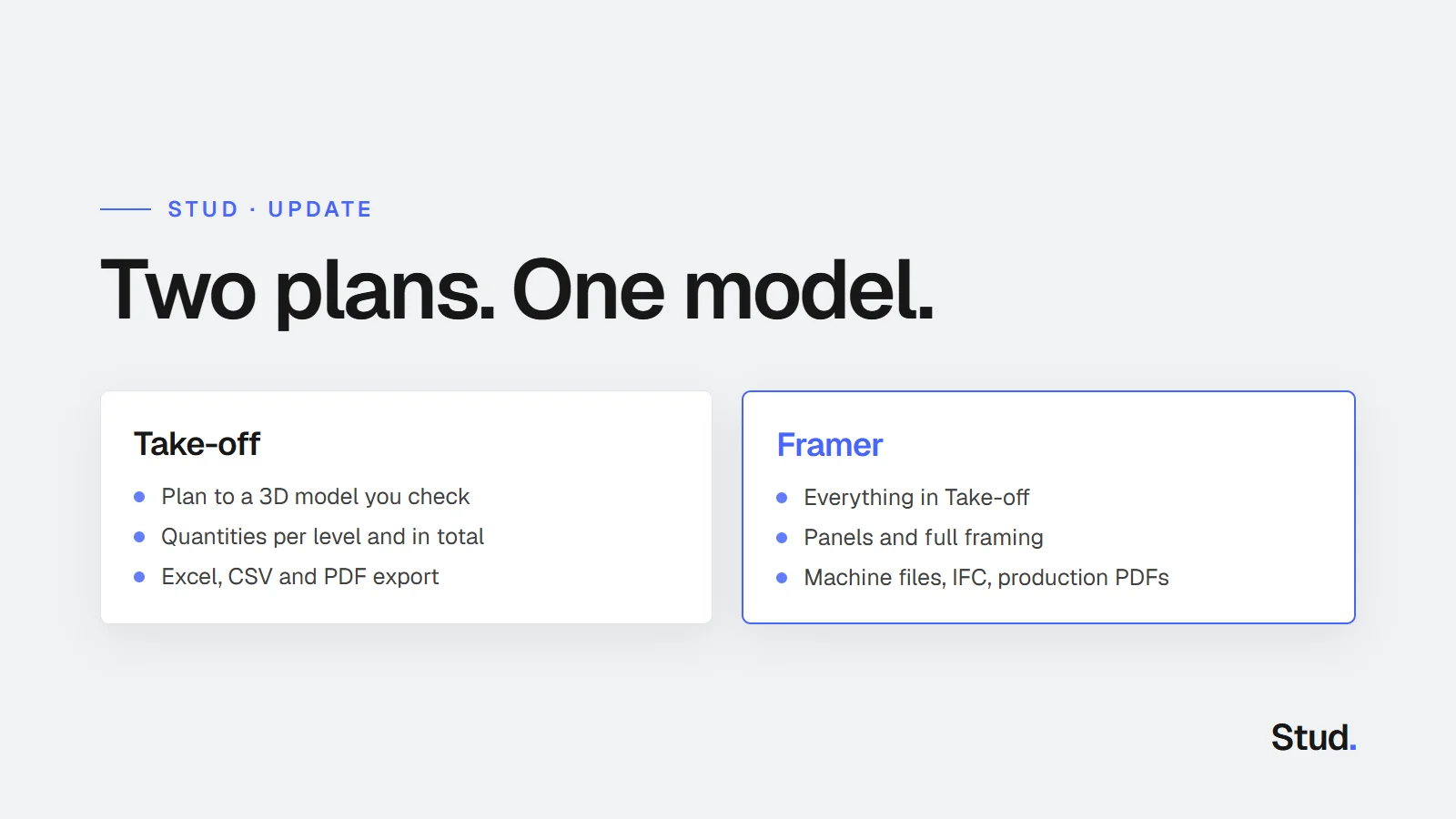
- Take-off: from your 2D plan to a 3D model you can check, and its quantities per level and in total.
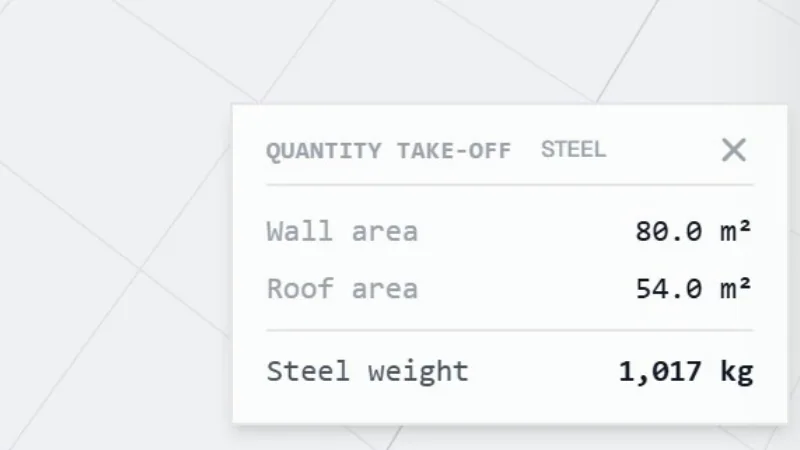
- Take-off exports the quantities to Excel, CSV and PDF: walls, floors, roofs and trusses in m², windows and doors by type and size.
- Framer: everything in Take-off, plus panels and full framing in steel or timber, and every production export.
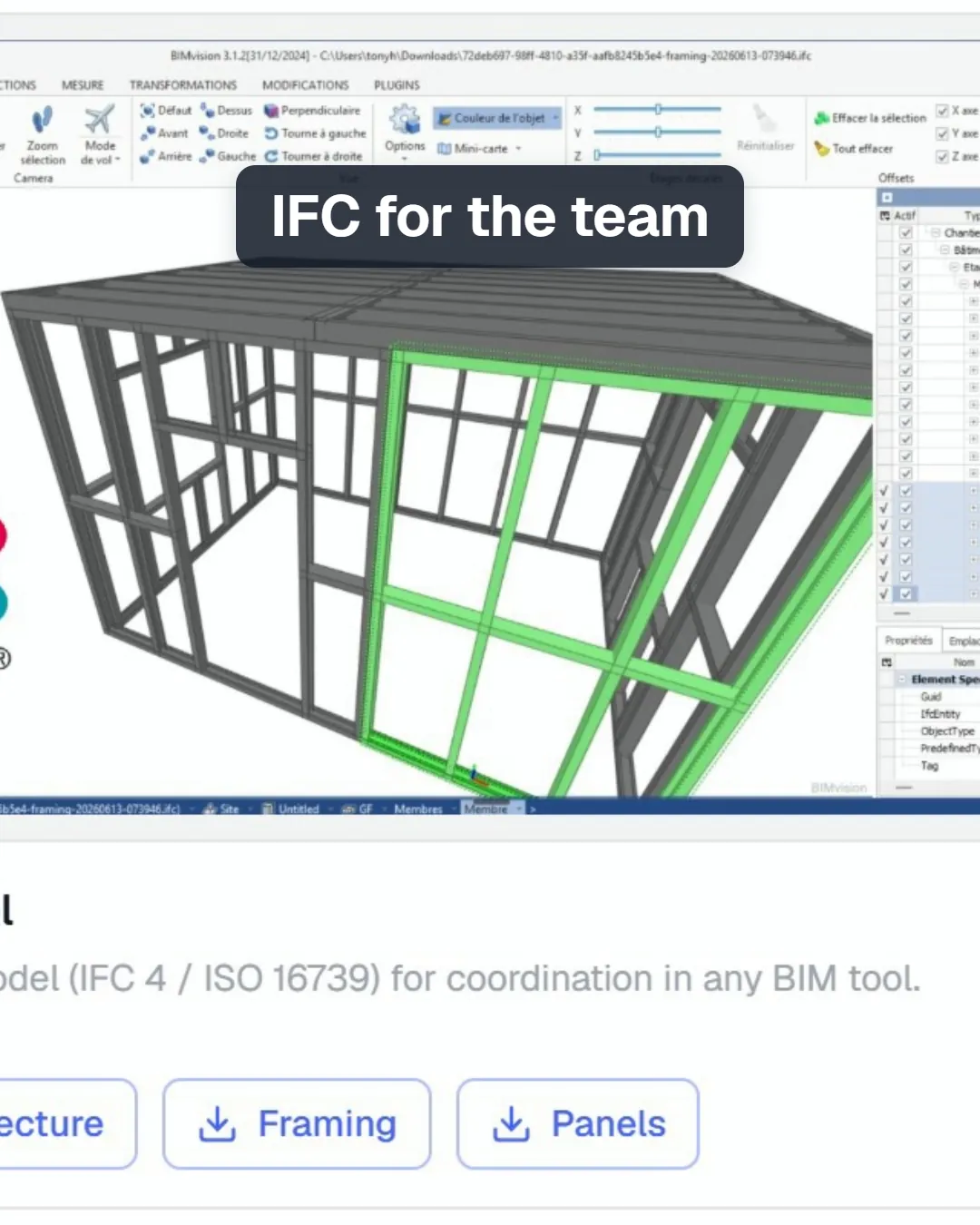
- Framer exports machine files for Howick and Tekla Pinnacle roll-formers, IFC and production PDFs.
- The free beta stays: you see the whole chain on your own plan, with the quantities on screen.
Why two plans?
Most of the plans a builder receives are for pricing. Only some become jobs. The two plans follow that split.
Take-off is for every plan you price. The agent reads the plan, builds the building in 3D and gives you the quantities. You check the model on screen, export the quantities and set your own price.
Framer is for the jobs you win. The same model becomes panels and framing, then machine files, IFC and production PDFs. Nothing is redrawn between the quote and the build.
| Free beta | Take-off | Framer | |
|---|---|---|---|
| Plan to 3D model, the agent asks what is missing | Yes | Yes | Yes |
| Quantities on screen | Yes | Yes | Yes |
| Quantity export (Excel, CSV, PDF) | No | Yes | Yes |
| Panels and framing | On screen | On screen | Yes, with every export |
| Machine files, IFC, production PDFs | No | No | Yes |
Stud is in beta: the plans and what they include may still change. The pricing page always has the current version.